Voting Event Settings
Understand each voting event setting and when to use it.
Pepvote now keeps voting event settings in one sheet with four tabs: General, Public Registration, Voting, and Result.
Open a voting event, use the command button or Manage Voting Event, and select Voting Event Settings.
General settings
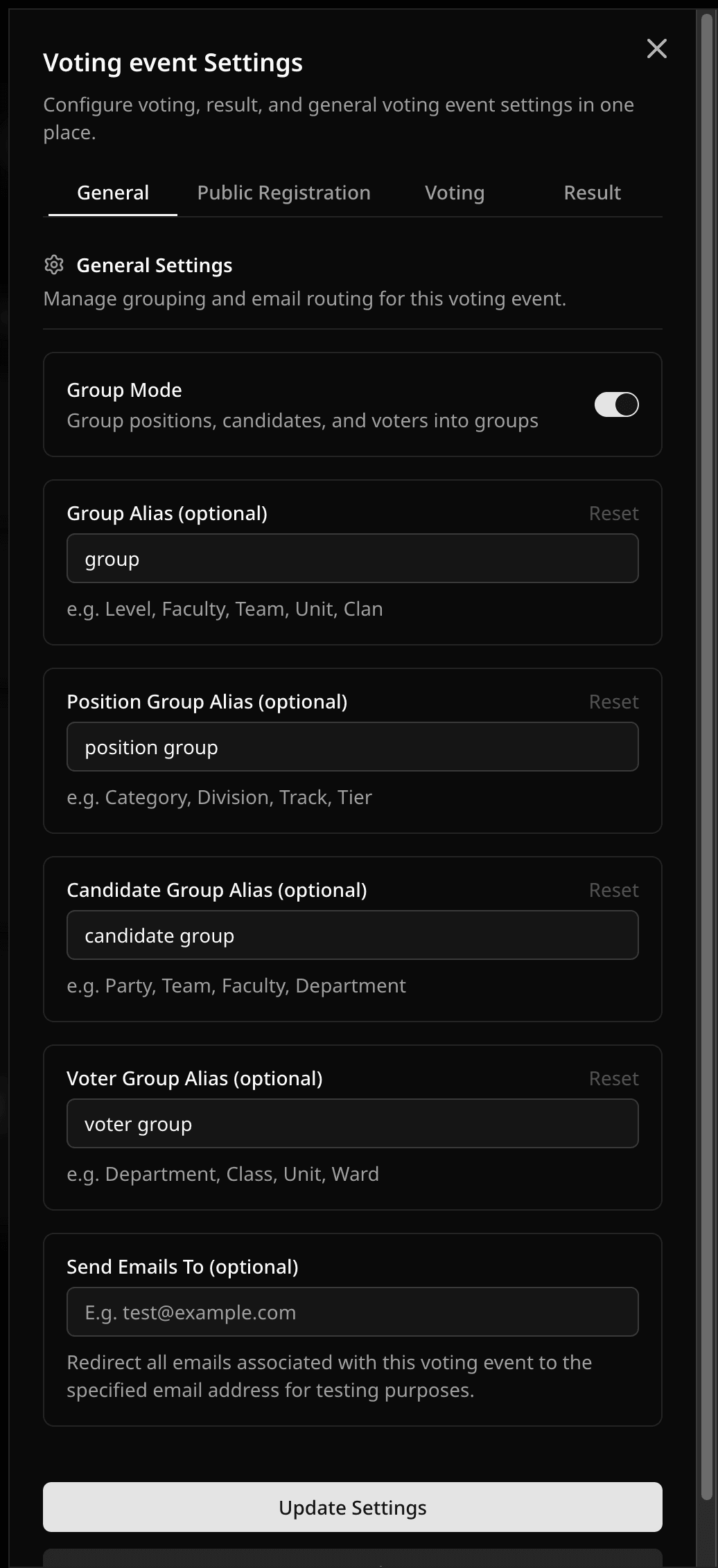
Group Mode
When enabled, Pepvote can group positions, candidates, and voters. Group Mode also reveals the Groups tab in the voting event dashboard.
You can optionally rename the group labels used for:
- Groups
- Position groups
- Candidate groups
- Voter groups
Send Emails To (optional)
Use this field to redirect emails for this voting event to one test email address. This is useful when you want to test voter keys, voting-started emails, or invite emails without sending them to real participants.
Public Registration settings
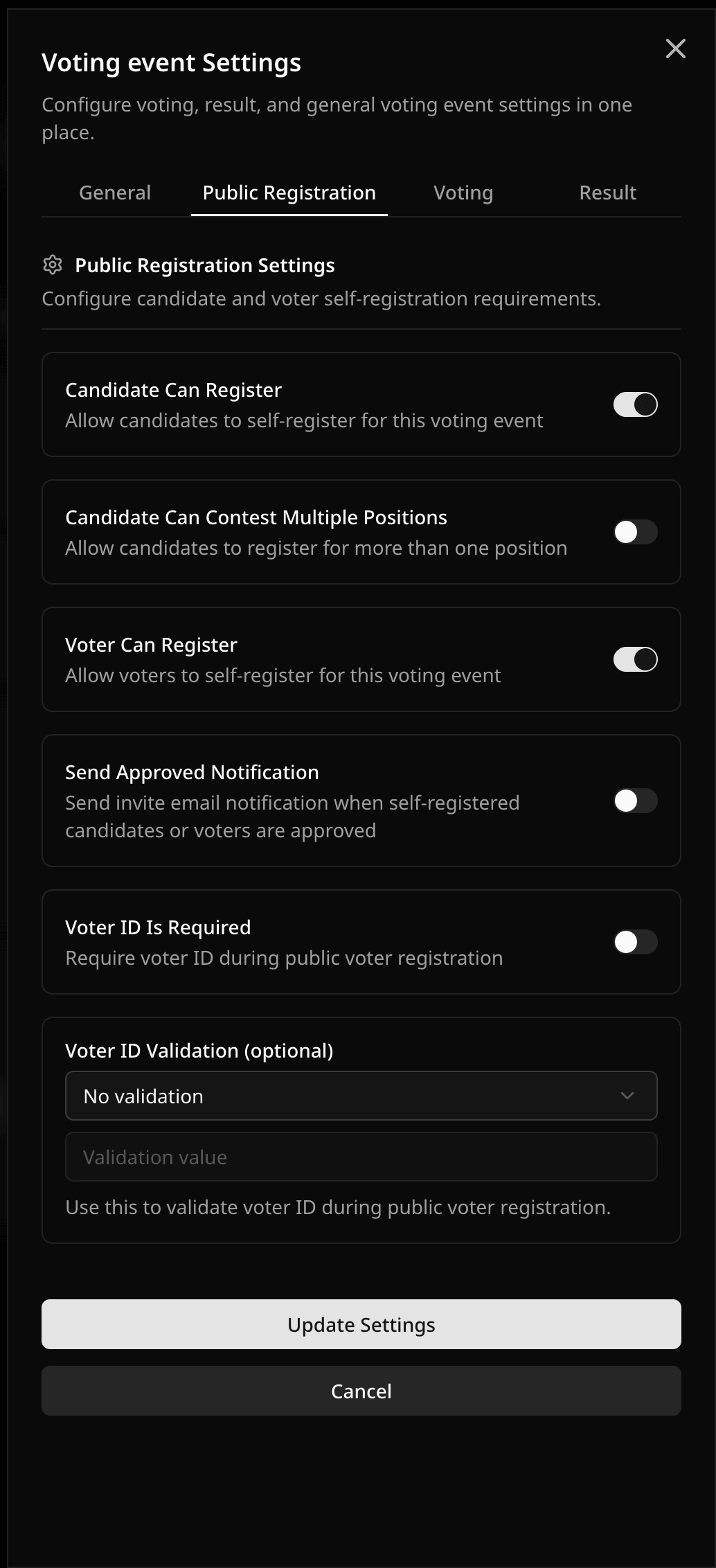
Candidate Can Register
When enabled, candidates can self-register from the public candidate registration link. Self-registered candidates still need approval before they appear on the ballot.
Candidate Can Contest Multiple Positions
When enabled, one candidate can register for more than one position.
Voter Can Register
For election voting events, this lets voters self-register from the public voter registration link. Self-registered voters still need approval before they can cast votes.
Send Approved Notification
When enabled, Pepvote can email self-registered candidates or voters after they are approved.
Voter ID registration rules
For election voting events, you can require a Voter ID during voter self-registration and optionally validate that ID with contains, starts with, or ends with logic.
Voting settings
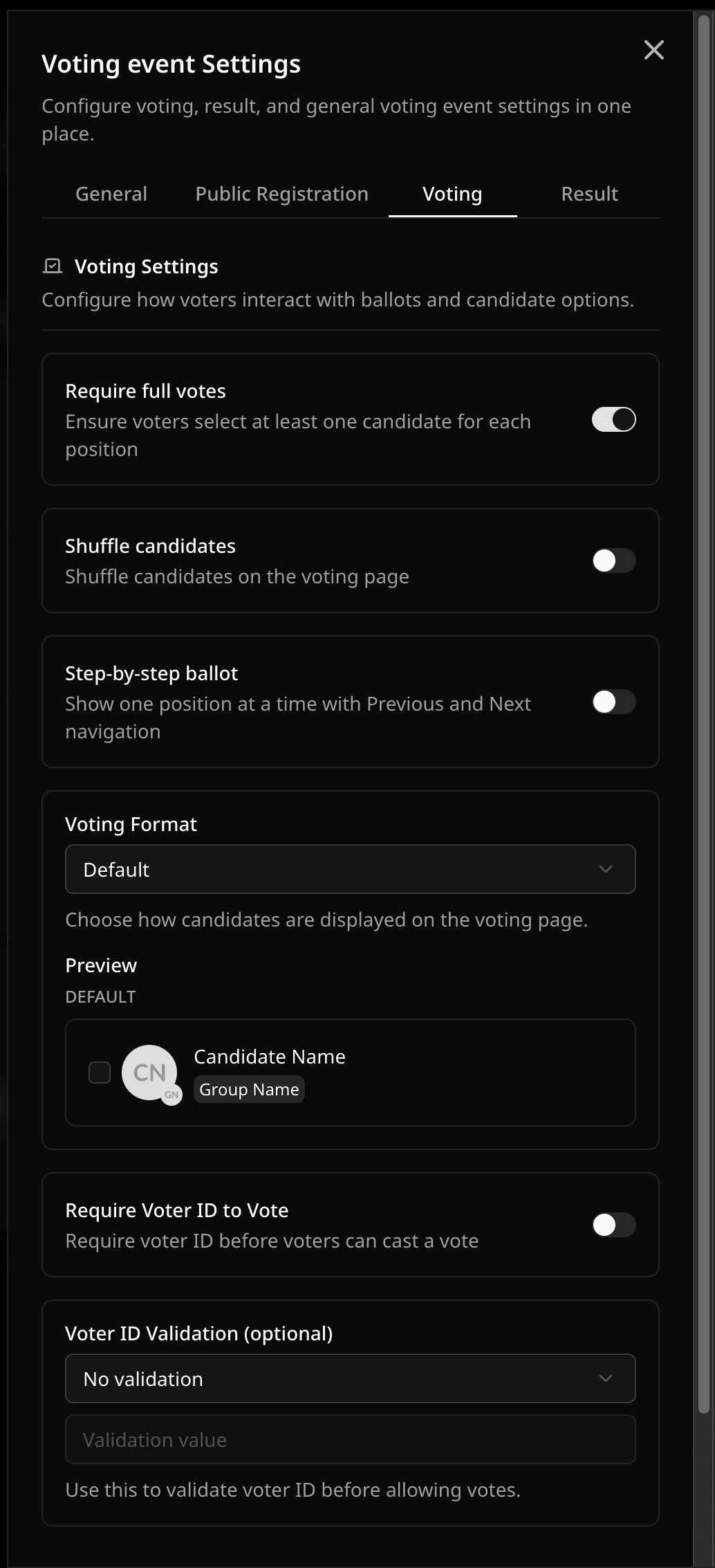
Shuffle candidates
When enabled, candidate order is randomized on the ballot.
Step-by-step ballot
When enabled, voters see one position at a time with Previous and Next navigation.
Voting format
Choose how candidates appear on the voting page:
- Default
- Big Avatar
- Options With Avatar
- Options
The settings sheet includes a live preview of the selected format.
Require Voter ID to Vote
When enabled, voters must provide their Voter ID before they can cast votes. You can also apply the same optional Voter ID validation rules used for public registration.
Save Voter Info During Voting
For poll voting events, this collects the voter's name and optional email during public voting.
Result settings
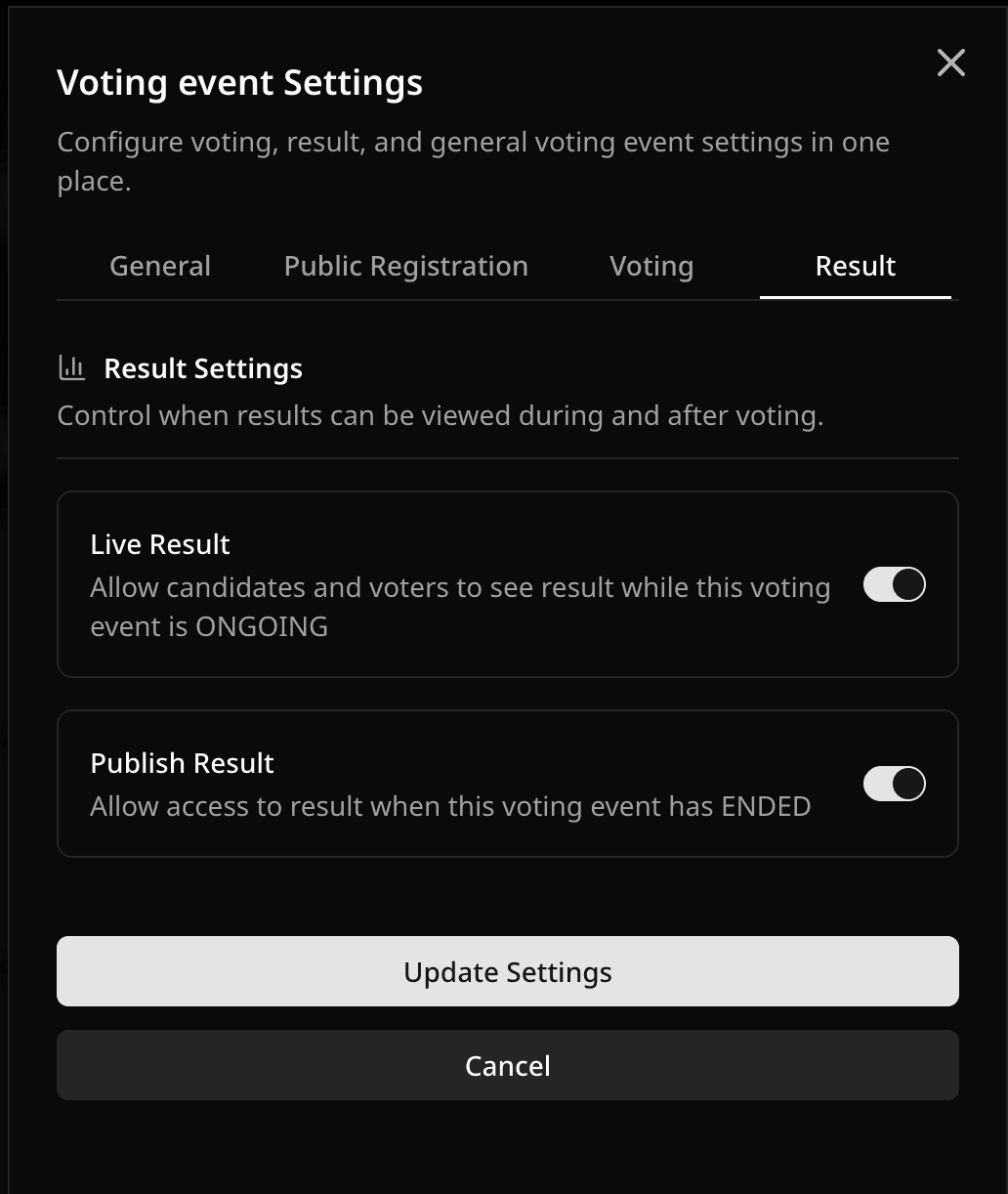
Live Result
When enabled, candidates and voters can view results while the voting event is ongoing.
Publish Result
When enabled, results are available after the voting event ends.
Setup Ballot quick settings
The Setup Ballot sheet also exposes quick controls for Voting Format, Group Mode, Shuffle candidates, and Step-by-step ballot while you are building the ballot. Configure required and optional responses in each position's minimum and maximum selection rules.
Recommended setup pattern
- High transparency voting events: enable Publish Result.
- Real-time engagement voting events: enable Live Result.
- Configure strict or optional responses per position with minimum selections.
- Fairness against list-order bias: enable Shuffle candidates.
- Long ballots: consider Step-by-step ballot.
Last updated August 27, 2026